If you’ve ever hovered over the “Update” button and wondered what might break, you’re not alone. Knowing how to update WordPress safely is one of the most useful skills a website owner can have. With a backup and a simple routine, updates take a few minutes and carry very little risk. Here’s the routine I teach in my training sessions.
Why you should update WordPress regularly
Your website has three moving parts: WordPress itself (often called “core”), your theme and your plugins. Each one gets regular updates that close security holes, fix bugs and keep everything working together.
Skipping updates doesn’t keep your site safe. In fact, it does the opposite. Most newly reported WordPress security flaws are found in plugins, and updates are how those flaws get fixed. Once a fix is out, the problem becomes public knowledge, so sites that haven’t updated become easy targets. Also, the longer you wait, the bigger and riskier each update gets.
The good news is that WordPress already handles some of this for you. Since version 3.7, most sites install minor and security releases of WordPress automatically. Bigger releases, plus your theme and plugins, still need you, unless you turn on automatic updates for them.
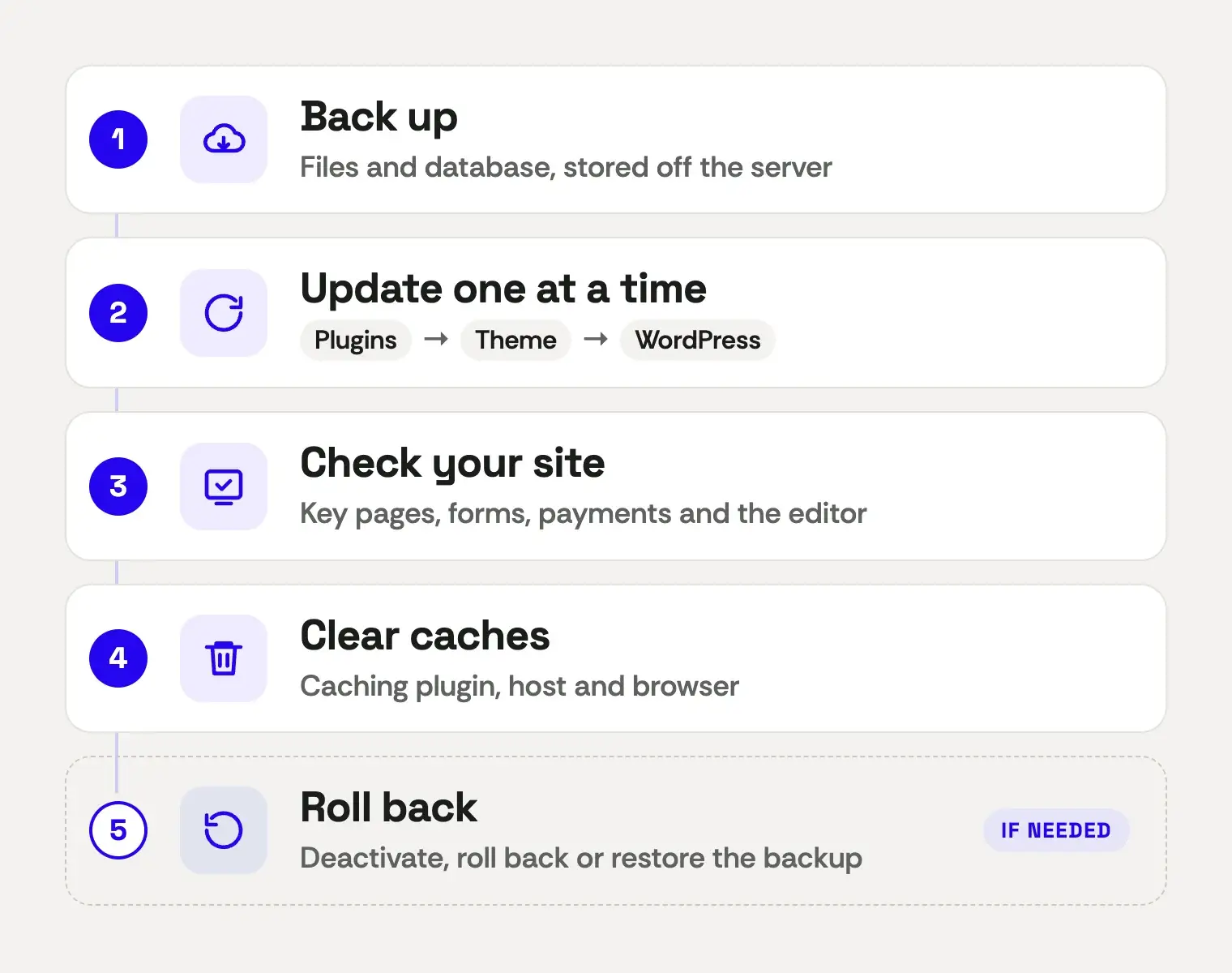
Step 1: Back up before you update WordPress
Never update WordPress without a fresh backup. It’s your undo button if something goes wrong. Here’s what a useful backup looks like:
- It includes files and the database. Your pages, posts and settings live in the database, while your images, theme and plugins live in the files. You need both.
- It comes from your host or a plugin. Many hosts take daily backups and let you make one on demand. If yours doesn’t, a backup plugin can do the job.
- It’s stored somewhere else. A backup saved only on the same server won’t help if that server has a problem.
- You know how to restore it. A backup only helps if you can put it back. So test a restore once, before you actually need it.
WordPress has a full guide to backing up your website if you’d like more detail. And if your host offers a staging site, which is a private copy of your website, even better. Run the updates there first, check everything and then repeat them on the live site.
Step 2: Update one thing at a time
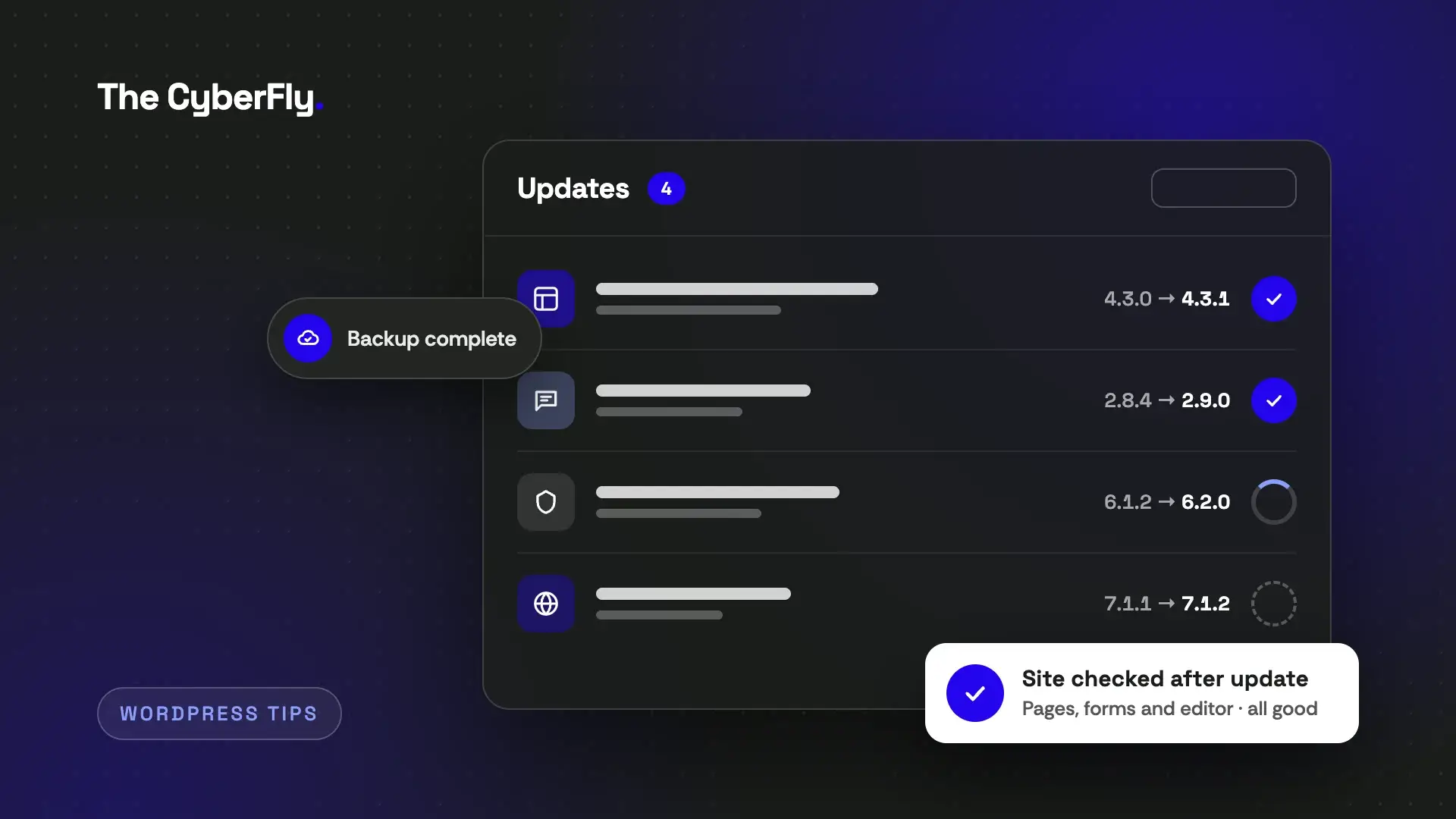
Go to Dashboard → Updates to see everything that needs attention. It’s tempting to select everything and click once, but don’t. If something breaks after ten updates, you won’t know which one caused it.
Instead, work through them one at a time and check the site as you go. I usually follow this order:
- Plugins first. Plugin developers often release compatibility updates before a new version of WordPress arrives. So update one plugin, check the site, then move on to the next.
- Your theme next. If someone edited your theme’s files directly, an update could wipe out those changes. Check with whoever built your site before you update it.
- WordPress core last. When you update WordPress itself, minor releases, such as 7.1.1 to 7.1.2, are usually safe. For major releases, such as 7.1 to 7.2, it’s worth waiting a week or two while early bugs get fixed.
A few extra tips make a big difference:
- Read the changelog for big jumps. A plugin moving from version 3 to version 4 deserves more care than a small fix.
- Update page builders as a pair. If you use Elementor and Elementor Pro, update them back to back, so the two versions stay compatible.
- Pick a quiet time. Update when traffic is low and you have time to check things, not five minutes before a meeting.
Step 3: Check your site after updating
Once the updates are done, spend five minutes checking the things that matter most:
- The homepage and a few key pages, on a computer and on your phone.
- Menus, buttons and links.
- Your contact form. Send yourself a test message and make sure it arrives.
- Anything that takes payments or bookings.
- The editor. Open a page in Elementor or the block editor to make sure it loads.
If a page looks odd, clear your caches first. That includes your caching plugin, your host’s cache and your browser. If you use Elementor, open its Tools screen and click Clear Files & Data. Older versions call this button Regenerate CSS & Data. Often, a “broken” layout after an update is just an old file being shown.
What to do if something breaks
Don’t panic. Most problems after an update are quick to fix:
- If a plugin broke something, deactivate it and see whether the problem goes away. Then look for a fix from the developer, or roll back to the previous version. For example, Elementor has a Rollback Version option on its Tools screen, under Version Control.
- If you see a critical error, check the site admin’s inbox. WordPress usually sends a link to recovery mode, which lets you log in and switch off the plugin or theme causing the problem.
- If it’s still broken, restore the backup you made before updating. This is exactly why step 1 matters.
Should WordPress update itself automatically?
Since WordPress 5.5, you can turn on automatic updates for plugins and themes, one by one. They suit small, well-maintained plugins, especially security ones. However, for big plugins like page builders, forms and online stores, I’d rather update by hand, so I can check the site straight away.
Whatever you choose, keep automatic backups running. Together, automatic updates and automatic backups make a good safety net for a busy business owner.
When to ask for help
Most routine updates are safe to do yourself. Even so, it’s worth getting a second pair of hands when:
- Your site hasn’t been updated in months, and there’s a long list waiting.
- Your host asks you to upgrade PHP, the language WordPress runs on. You can see your current version under Tools → Site Health.
- Your site takes payments or has custom code.
- You don’t have a backup, or you’re not sure how to restore one.
Once you know how to update WordPress safely, it becomes a quick monthly habit rather than a worry. I offer hands-on WordPress training that uses your own website as the classroom, so you can learn this routine and update with confidence. If you’d rather hand it over, I can also look after updates as part of my website support. Either way, get in touch, with no pressure and no jargon.